We remain fully operational. Our teams are working around the clock to ensure your deliveries continue safely.

DOWNLOAD THE APP


Copyright © 2025 Desertcart Holdings Limited
DOWNLOAD THE APP


Buy anything from 5,000+ international stores. One checkout price. No surprise fees. Join 2M+ shoppers on Desertcart.
Desertcart purchases this item on your behalf and handles shipping, customs, and support to JORDAN.
🌈 Elevate your workspace with immersive color and smooth visuals — don’t just see it, experience it!
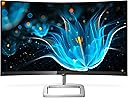
The Philips 328E9QJAB is a 32-inch curved frameless monitor featuring a Full HD 1920x1080 VA panel with 128% sRGB color coverage for vivid imagery. It supports a 75Hz refresh rate and AMD FreeSync for smooth motion, ideal for professional multitasking and casual gaming. Equipped with multiple connectivity options including HDMI, DisplayPort, and VGA, plus built-in speakers and VESA mount compatibility, it offers versatile setup options. Eye-friendly features like LowBlue Mode and Flicker-Free technology ensure comfort during extended use. Backed by a 4-year advance replacement warranty, it’s a reliable, immersive display designed for the modern professional.


| ASIN | B07KQXJLF7 |
| Adaptive Sync | FreeSync |
| Additional Features | Curved, Flicker-Free, Frameless, Ultrawide Screen, Wall Mountable |
| Aspect Ratio | 16:9 |
| Best Sellers Rank | #264,054 in Electronics ( See Top 100 in Electronics ) #5,287 in Computer Monitors |
| Brand | Philips |
| Brightness | 250 cd/m² |
| Color | Black |
| Color Gamut | 122.80 |
| Connectivity Technology | HDMI |
| Contrast Ratio | 20,000,000:1 |
| Customer Reviews | 4.6 out of 5 stars 1,825 Reviews |
| Display Resolution Maximum | 1920 x 1080 Pixels |
| Display Technology | LED |
| Display Type | LED |
| EU Spare Part Availability Duration | 4 Years |
| Global Trade Identification Number | 00609585252554 |
| Hardware Connectivity | DisplayPort, HDMI, VGA |
| Has Color Screen | Yes |
| Image Contrast Ratio | 20,000,000:1 |
| Item Type Name | Computer Monitor |
| Item Weight | 14.95 Pounds |
| Manufacturer | Envision Peripherals |
| Model Name | E9 |
| Model Number | 328E9QJAB |
| Mounting Type | Wall Mount |
| Native Resolution | 1920x1080 |
| Picture Quality Enhancement Technology | SmartImage game |
| Refresh Rate | 75 Hz |
| Resolution | FHD 1080p |
| Response Time | 5 Milliseconds |
| Screen Finish | Glossy |
| Screen Size | 32 Inches |
| Screen Surface Description | Glossy |
| Shape | Rectangular |
| Specific Uses For Product | Business, Gaming, Personal |
| Total Number of HDMI Ports | 1 |
| UPC | 609585252554 |
| Viewing Angle | 178 Degrees |
| Warranty Description | 4 Year Advance Replacement, 4 Years Parts and Labor |
W**.
Phillips 328E9FJAB-At 2460X1440 max resolution. Excellent all-around monitor for average home use.
Please take note of this model number. as this review only covers this specific monitor at 2460 x 1440 and it does not address higher res 4K monitors. Aside from the excellent picture quality does not give any relevant info regarding any other Model. $299 - It was well-packaged and there are no bad pixels. That's about right. A fine monitor at a good price if you are not buying it for Gaming. A VA panel with 1 Display Port, 1 HDMI, with 1 D-Sub (VGA). Ships with 16:9 native resolution 2560 x 1440 that is good for Display Port, HDMI; VGA is 1920 x 1080. For me, 2K is the best resolution that gives a fair amount of screen real estate without text being too small. For gaming, 4k gives you the big picture for sizing up the battlefield, so this is not a gaming monitor. With fonts at 11 and MS Word page view set to 100 %, I can squeeze in the sides of the Word borders so they are just touching the edges of an 8 1/2 x 11 page. That just fits 3 separate Word documents left to right across the screen leaving a few inches of background at the bottom of a single page; or - within Word a single document will easily automatically fill the screen with three consecutive pages. With a little mouse work, I can get 4 File Explorer frames on the screen only showing Name, Size, (Size Column moved over next to Name), and Date Modified. I can copy, cut, paste files in and out of four simultaneous onscreen panels. A 21:9, 34 inch 4k monitor would fit more, but my brain can only do so much. I can chew gum and walk, but that's about it. Text in Word looked good with my eyes about 27" away from the screen. For my use, I can't see that smaller size is practical and practical is what I want. With the VESA mounting arm I could move it closer if I choose. With a 34 inch or larger screen moving to a higher res or larger monitor in any closer is a trade-off . Audio is Line in and Audio Out, or output from HDMI and Display Port. I just plug my headphones into a 3.5mm extension cable so I don't have to reach but a few inches to plug into the Audio out. Volume control is adjustable via the OSD Menu. I set the OSD volume at max and use the PC Volume Control. It works good with my Headset. This monitor comes with an HDMI and a VGA cable only so you'll need to supply your own Display Port cable. Out of the box the upright part of the stand is already attached. Just use the attached Thumbscrew on the Base to attach it. Whatever the Input, it's a great picture with the defaults except for Brightness. The Windows 8.1 Settings Main page is a relatively little amount of print with about 90% white background. Zowie! I was seeing fireflies, should've put on sunglasses. Turned Brightness down from 100 to 45. Ahh, that's better, didn't have to mess with anything else. A word about screen size. Recall it's measured diagonally, 31.5 inches for this monitor. If Measured straight across edge to edge, it's 28 inches. Factor in the 3/8 border and you lose 3/4 inch, so actual screen width is 27.25 inches. Still, a good size monitor. A 32 inch monitor at 21:9 is wider than at 16:9. Picture the diagonals in your mind. Few monitor screens actually meet up with the thin bezel edge. Most have a thin border. If you want the User Manual, typically, you must download it online. You can go online to the manufacture and download a User Manual to find the dimensions of any monitor before you buy. I downloaded and checked it out to determine if I wanted to buy. Reading the Manual was crucial in my decision as it answered just about every question I had. The Manual is a good way to get all the detailed specs, inputs, weight, frequency, resolution. It showed a menu tree of all the available selections, how to use the OSD reveals the inner workings such as compatibility; PBP, PIP, (or not, as is the case with this monitor). What I was also able to determine pre-purchase was that the OSD menu buttons are in the middle at the bottom on the back side of the monitor opposite the Logo. That makes it the same for both Right and Left-handed users, i.e. more comfortable for Lefties. The single button is larger than most; hold for three seconds to turn it off. The button acts in joystick fashion. I was a little clumsy at first, but it didn't take long for it to feel familiar. Takes less than three seconds to change inputs. I prefer this single button joystick type action to the multi-buttons along the bottom of other monitors. I have three inputs, three Computers. One with Display Port, one with HDMI, my Mac Mini has both, i.e. mini Display Port with a 6 inch adapter cable, or Mini Display Port adapted to VGA so I used the VGA Input from the Mac. Most anything 2012 or later, PC or Mac will have HDMI 1.4 or Display Port 1.2 outputs, all that's needed for this monitor. In my case, less is more. Without all the high-end specs, this monitor is very stable, will work with onboard graphics. Might have to change Bios to IGFX. Bios Default of PCIe x 16 number 1 slot usually works in any case. it should work right out of the box with most any computer, plug and play, but, it's likely you will turn down the brightness If you have two Computers, chances are they both have HDMI Ports. Phillips chose to cover all the bases. VGA displays at 1920 x 1080. HDMI to VGA Adapters are cheap and plentiful if you have to use the VGA. My 3 computers with three different outputs all work right out of the box utilizing all three ports. My Mac, using a mini-Display Port to VGA adapter, the screen really looks beautiful on the Mac at the lower resolution but it may become a game changer. I'll use it some to determine that. There are relatively few 32 inch 2K curved monitors available with VESA Mounts. I'm puzzled some don't provide VESA mounting. 2 HDMI inputs. That's the industry standard with every other 2K monitor, but Phillips had broadened the scale by providing three different inputs that cover all the bases, but, again, The display's native resolution is only for Display Port and HDMI. Whatever your computer, this monitor is plug and play. It is not at all finicky. It's pretty bare bones, 59 HZ max vertical frequency; not enough for serious gaming. What it is, as my heading forecasts, a good monitor for home use. e.g. If I do a jigsaw puzzle of 400 pieces, there's enough room around the sides to sort and stack the pieces, leaving the puzzle area clean and open. Gaming? Yeah, Mah Jong, Solitaire and Jigsaw is about my speed. A pleasure to indulge in these diversions as the picture quality is first rate, to the point that compared to another monitor with higher specs, you wont be able see much, if any, difference; not enough to consider spending the extra money. At any price, the picture quality is more than satisfactory. The VESA mounting holes are 100mm. No VESA mounting screws supplied and the stand mounting screws are too short. This is typical. Not their problem; though you may have to waste some gasoline finding the right-sized screws, i.e. 4 x 10mm. Luckily, I had some standoffs and long screws supplied with my mounting stand or it would have been an Easter Egg hunt to find the right hardware. The mounting plate fastened without any bending and it easily slid right down onto the VESA mounting arm plate. Ideally, the screws should insert about 1/4 inch (6-8mm) into the monitor. In the final analysis, it is often how much money and/or how much time and effort that decides for us. Overall, Phillips Manual did provide a lot of good pre-sale information, better than most, but the manual clearly shows analog input, (VGA) as 2560x1440 Res. Maybe it is on a later model Mac, but my 2012 Mac Mini gets 2560x1440 out of the Display Port only, 1920 x 1080 from VGA adaptor. Nothing wrong with the monitor; most likely, whoever wrote the manual got it wrong. This caused me to think of whether I would send it back as I wanted 2560x1440 for all three computers. I have 1 DP cable. my Mac Mini sits a little behind and above my Lenovo laptop. Mini sits backwards with rear ports facing towards me Mini Display Port is about 8 inches away from Lenovo Port. Very easy to swap the cable between the two. I decide to leave the Mini with VGA and Laptop with Display Port. 1920x1080 on the Mac is just gorgeous, and the big screen works for all that I do on the Mac. If needed I can use the DP cable. Though it's handy to have both at the same res, it's not all that necessary. HDMI from my desktop is native res and switching inputs of all three is easily accomplished. 34 inch gaming monitor with 21:9 would have PBP, but I decided I don't need it. Buying a monitor is very subjective. There's no getting around the fact that you can't always decide fresh out of the box and you don't always get all the information you need from the online ads. I had to use it a while in real world daily usage to make up my mind. Returning a big monitor takes some effort, as you have to clean the screen and send it back packaged EXACTLY as you got it and probably have to pay 40-50 dollars to ship. If you just say that you don't like the monitor, you may not be able to return without paying a premium. My experience is it's easier to buy a computer than a monitor. Also, monitor manufacturers aim at the PC market. Mac Graphics on older Mini's are not as broad-based as PC's and MacBooks have their own specific monitor specs, so, if it works with PC, but not the same on a Mac... Conclusion: I did not have any problem with the operation of the monitor; it just works, I especially like the large, curved screen. It is, as they say, an immersive experience. I have some beautiful background pics. With such great picture quality; became enraptured; I got lost in one of them. Wow, so beautiful, even at 1920 x 1080, a whole other level of experience. My lone Con; only has 1 instead of 2 hdmi inputs, not a problem with only 1 Computer. Worst case for two computers, if needed you can get a $90.00 Geforce GT1080 card to provide a Display Port, while HDMI 1.4 or higher is standard on most recent Macs or PC's. I needed a steady work horse, not a thoroughbred racer. Something useful. This monitor more than fits the bill Walter O.
B**.
Great upgrade for the every day user (Not a huge gamer so can't speak too much to that)
I've recently moved away form using a PC Tower that I've had for a while. I have a 2018 Macbook Pro 13" and a work laptop. Between the two of them I rarely use my PC anymore. I am not a big gamer. For the little gaming I do I usually play my Xbox one and hook it up to my 55" 4K TV. I will say that the screen real estate on this screen and the curved glass is simply awesome. I am still adjusting to having such a large screen. I would say if you have a short desk (Maybe under 27" Deep, you may want to think twice on this monitor. It's rather large and that's nice but if your eyes are less than 24" from the screen I feel it would be too big. Just my opinion. Set up was easy. Stand works great (Not mounted) and is adjustable, and the screen is fantastic. I am really impressed that a monitor of this size and capabilities is so cheap (Paid $279.00 on Amazon). I have run some Youtube videos at 4K resolution, which of course doesn't display in 4K on this monitor, but it is very sharp and crisp. Colors are great and the experience is top notch. I hope to get more into photo and video editing this year. Will update to see how the monitor holds up to that when I do but I'm impressed for starters. Using solely as an external display for my Macbook Pro (USB to HDMI). If you can get this for less than $300.00 I say go for it.
S**N
Level 2 Monitor
For Gaming: 100%, absolutely, yes! I've spent years gaming on a TV, a few weeks on a small 27 inch monitor, and finally, this monitor. This gives that high definition that you've been missing out or hearing about. The image is beautiful, pristine and in 75 hertz. You'll thank yourself for making the big move to switch over from TV to Curved/Flat Monitor. Picture Quality: Unless you're unfamiliar with curved monitors, the product is curved to protect your eyes, preventing you from getting eye strain and headaches. I bring this up, because you'll more than likely be watching a movies, games or just browsing the web for hours using this. The picture quality is perfect, and grants great visuals for your pleasure. 5/5 Brightness: Bright but not the "white film" stretched across the monitor. Not to mention you can adjust the settings for this monitor quiet easily. 5/5 Audio: Loud enough for a small to medium sized room. This can be heard loud enough for all kinds of experiences. Gaming, movies, tv shows, music, etc --- this monitor can blast it loud enough that you'll have to talk over it if need be. 5/5 Overall, the monitor isn't PERFECT, but honestly, it's a 92/100. I mean, the audio is loud enough without sounding distorted, the visual/picture quality of everything you see is crystal clear, and to top it all, it's curved, so its going to be great for your eyes. On a scale of "Levels" (Level 1 being beginner, 2 intermediate, 3 boss, etc), i would rank this as Level 2. This isn't just a normal or simple monitor. The product is expensive for all the right reasons.
A**N
Great Monitor for the price!
After doing a fair bit of testing I have to say that I really enjoy this monitor for the price. Is it the best monitor of all time? No of course not. I will start with the biggest concerns about this panel. Many have talked about ghosting, First and foremost this monitor is 75hrz with a 5ms response time. With 30fps video you most likely will notice a little bit of ghosting. Truthfully its not bad at all and with you feed it 60fps or 75fps it is not noticeable at all. Also to get that 5ms response time you need to use the "faster or fastest" setting. I find in gaming at the full 75hrz "fastest" is great I can notice no real ghosting or overshoot. Now in watching youtube videos I can see some overshoot at the fastest setting. I find that the best is to leave it in faster. Also download the drivers for the monitor on philips website this helps some odd overshoot I had at first. The other talked about down side is the viewing angle. The sceen is insanely bright sitting right in front but when you go off to the sides the color remains and doesn't wash out but the brightness drops off pretty hard. Typical of a VA panel. On that front if you sit infront of the monitor this is not an issue. Over all the Colors and contrast of this panel is fantastic I rather enjoy this screen for video editing. For gaming this is a great choice if you have a mid to low range system where going above 75hrz is not an issue. Truthfully the 75hrz is smooth and I have no problem gaming on it even having used a 140hrz screen for some time. Many of the gaming purists will not enjoy it but if you are on a budget and want 1440p at $280 this is it. Its built very well I have no dead pixels or defects. Concluding, there is some minor ghosting you would expect with a VA 5ms panel but its only noticeable with poor quality video, I feel as though many who have had this issue did not set up the monitor correctly, It's a good choice and the average user will really enjoy the monitor. The value is fantastic.
S**R
Very good
One caveat up front, I do not use these for gaming, so I am not sure how well they do or do not work in that context. Also, since it appears that reviews for a couple of different types of monitors are being lumped together, mine is for the Philips Computer Monitors 328E9QJAB 32" Curved Frameless Monitor. I have a job that routinely requires me to have multiple documents and applications open at one time (e.g., Word, Acrobat, Outlook, and a web browser at the very least), and because of the Covid-19 pandemic, my office instituted a mandatory work-from-home policy. Therefore, I got a couple of these to connect to my laptop via a docking station. They are relatively easy to get set up. The only thing I found a bit tricky is that the power button is on the back of the monitor, just on the other side of the Phillips logo in the middle of the bottom of the monitor. If you connect via an HDMI cable the picture is very crisp, and you can easily display multiple documents/applications at one time. I just have the monitors at eye level and do not have any problem seeing any portion of the screens. I am not sure how it would be affected if the monitor is moved above or below eye-level. It does have a speaker that emits okay sound, and you can connect an external speaker via a jack in the back of the monitor to get better sound out of it. Overall, If you are looking for a relatively large, widescreen monitor that is inexpensive, I definitely recommend this one.
K**E
Surper curved is surper great!
This is a review for the Philips 325E1C 32" Surper-Curved [sic] Frameless Monitor, Quad HD 2K. Hope I'm not the only one to have caught the spelling error. But if you didn't see it before you can't unsee it now. :D My monitors arrived in perfect condition with zero stuck pixels. I'm running both on DP 1.2 with an GTX 1650 Super as the source. I was upgrading from dual 27" flat displays. My first impression with the 32" Super-Curved QHD displays was just how comfortable they were by comparison to my old 27" flats. Despite being substantially larger, the content appears much closer due to the high rate of curvature. (1500R). It's a true panoramic experience. I don't see any distortion or 'pin cushion' effect. I have heard others complain about distortion but it isn't an issue in my case at all. Being a VA (vertical alignment) panel, both contrast and color are very nice. Although a full IPS panel is going to have the best quality image in terms of color accuracy, I think this VA panel is perfectly acceptable for photo and art applications. That said, it's worth noting that there is a very slight backlight bleed at the edges. You have to be on a pure black background and in a dark room to really see it clearly but it's not non-existent. The 75Hz refresh is plenty high for what I do, but some gamers may want to consider a higher refresh TN display because there is very noticeable horizontal blurring. Overall I couldn't be more satisfied. I am very happy with the price, quality and warranty.
S**G
Best bang for buck!
Phillips esthetics are very sleek, modern and minimalistic. With "1440p" resolution and QHD, the picture quality is crisp both for text and for videos. The big screen with the curved surface, helps me to organize my desktop for work - browser's multiple windows on right side - one for video streaming, another youtube and third for reference material search. On left I put the code-editor, testing and documentation windows open. It's like working on two monitors with space conservation and no straining of eyes. Config tips: Easy HDMI connection setup with laptop and good quality 3-pin power cable to power up monitor. Monitor comes with VGA and audio in/out cables. Audio cables are not necessary for playing sound. With joystick at the back (near screen-base), all sounds and display functionalities such as volume, display brightness, contrast, colors can be tweaked. There are several preset levels as well. When laptop's power adapter is plugged to the laptop, and its lid is closed, then the display on monitor becomes main display. Make sure to connect the keyboard and mouse to the laptop before you make your monitor main display. My MacBook pro, apple's wireless keyboard and mouse have been working very well with it. Husband also wanted one when I bought one for myself :) Con: There was one dead pixel, I noticed when I tried to switch to 75 fps and conversion from default 60 to 75 failed.
A**R
Great monitor
Philips 325E1C 32" Surper-Curved Frameless Monitor, Quad HD 2K Pros: Great color, contrast, and deep black Sleek design with a small bezel Sharp image Decent price point Cons: Definitely need to run it at the base screen resolution. It looks horrible if run at a different resolution, which is not atypical of this type of monitor. If you want to run lower res, get a cheaper monitor with a lower base resolution. Make sure your video card can handle the base screen resolution. A few people have complained about poor off axis viewing although you have to get pretty far off axis for it to be bad. You naturally want to sit directly in front of a curved monitor and you need to be awkwardly off axis for the screen viewing to suffer.
Trustpilot
3 days ago
1 month ago